At our recent NAV User Group conference, I had the pleasure of seeing some new NAV 2009 functionality demoed by our local Microsoft ERP Expert.
In the demo, Sue set a filter on a list of records (I think it was a vendor list) and then from the Actions command menu selected a new option called "Edit in Excel".
This looked similar to the Send to Excel feature with one difference. There was a new button on a Dynamics NAV tab of the Ribbon that allowed the data to be updated.
In the demo, Sue deliberately set the Responsibility Centre in the spreadsheet to an invalid value and the update returned an error message that the Responsibility Centre was not valid. She then corrected the data in the spreadsheet, hit the update button and the data was updated in NAV.
This was a fantastic demonstration of the new NAV 2009 web services in action. I'm pretty sure this option is not available in the Marketing Beta Release that is available to partners and the image Sue had was based on Windows Server 2008.
It looks like there's definitely more cool stuff coming in the NAV 2009 release and this ability to edit data in Excel is going to prove extremely useful to many users.
Showing posts with label Excel. Show all posts
Showing posts with label Excel. Show all posts
Friday, 24 October 2008


Sunday, 14 October 2007
Fixed-width Text File Editor - Excel.
Recently I needed to work with NAV to produce some fixed width text files. I wanted a tool to help me check the output file against my file specification. What I really needed was something that let me see the contents of the file nicely split up by column with the columns numbered along the top of the file.
I did a quick search on Google and found little. Then I thought, what about Excel? Maybe I could use Excel to somehow show the file in the format I wanted. Well It was remarkably easy.
I created two worksheets. My first sheet simply contained one cell which contained the full text of the record in my file. Each row contained one record.
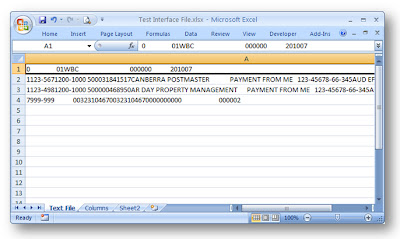
In my second sheet, I created a series of column headings and then used the MID function to take a single character from my first sheet based upon the column I was in. The formula looked like this:
MID('Text File'!$A1,Columns!B$1,1)
I did a quick search on Google and found little. Then I thought, what about Excel? Maybe I could use Excel to somehow show the file in the format I wanted. Well It was remarkably easy.
I created two worksheets. My first sheet simply contained one cell which contained the full text of the record in my file. Each row contained one record.

In my second sheet, I created a series of column headings and then used the MID function to take a single character from my first sheet based upon the column I was in. The formula looked like this:
MID('Text File'!$A1,Columns!B$1,1)
I then copied this function to all of my cells. I also put in some row headings and some conditional formatting to change the colour of the background if the length of the field was 0 (i.e. no character.)
 After generating my text file, I would open it in notepad, select all (Ctrl+A) and copy it, then paste into the Text File worksheet of excel and check the data in the columns against my specification.
It did the job quite nicely.
Subscribe to:
Posts (Atom)

