Showing posts with label Top Tip. Show all posts

Tuesday, 13 January 2009

Where is that menu option in NAV 2009?

Ever since the Outlook-style menu was added to Dynamics NAV, I have struggled to find the options I want. Eventually I got used to where things were in the standard system but as soon as the end users or over-zealous consultants made modifications to the MenuSuite objects, I found I was lost once again.

So what is the solution? Obviously I needed a tool to help me find the option I was looking for. In my dream world, I could type "Payment" into a search box and have the following results presented to me:

Financial Management | Cash Management | Payment Journals
Financial Management | Payables | Payment Journals
Financial Management | Receivables | Documents | Customer Payment
Financial Management | Receivables | Setup | Customer Payment
Etc.

It would be really nice to then be able to click a button to launch the option and hopefully, by seeing where the option is, commit to memory where the item can be found.

Previously building a solution such as this was too hard (for me). This was mainly due to the export formats available to version prior to NAV 2009. You could sort of do this by exporting the MenuSuite objects as text and then write a program to read the text file and use this information to build the menu paths. I didn’t really want to have to figure out the file format of the MenuSuite export, and I didn’t really want to have to write the program to read it in. It never seemed quite worth the effort.

NAV 2009 has changed things and I thought that the ability to export objects as XML would make this task a lot easier. Unfortunately when I tried to export a MenuSuite in XML format, all I got was an empty XML file – not what I was hoping for. Back to the drawing board!

Then, when I was creating some programming samples for my book on Implementing Microsoft Dynamics NAV 2009 (buy it from amazon here), I discovered that the Object Metadata table has a blob field called Metadata that, for MenuSuite objects, contains the MenuSuite in XML format. How cool is that? Not only can I get the data in an easily-accessible format, but I can also do it programmatically by handling the XML document in the blob field.

If you wanted to see the contents of your MenuSuites in NAV 2009 as XML files, you could run the following Codeunit. Now I have the basic tools for the job, I can create a Page in NAV 2009 that will (hopefully) meet my requirements. I will, of course, post the progress here. Stay tuned.

Here's the Codeunit...
OBJECT Codeunit 91360 Export MenuSuite Objects
{
OBJECT-PROPERTIES
{
Version List=;
}
PROPERTIES
{
OnRun=VAR
l_ObjectMetadata@1000000004 : Record 2000000071;
BEGIN
// MenuSuite items in the RoleTailored client are stored in the range 1000..1999
// They map to the Classic client numbers but with 1000 added to the number.

l_ObjectMetadata.SETRANGE("Object Type", l_ObjectMetadata."Object Type"::MenuSuite);
l_ObjectMetadata.SETRANGE("Object ID", 1000, 1999);

IF NOT l_ObjectMetadata.FINDSET THEN
ERROR('Something went wrong. There was no Object Metadata for the RoleTailored MenuSuites.\'+
'This sample only works with NAV 2009.');

REPEAT
l_ObjectMetadata.CALCFIELDS(Metadata);
l_ObjectMetadata.Metadata.EXPORT(TEMPORARYPATH+STRSUBSTNO('Metadata_%1.xml',l_ObjectMetadata."Object ID"));
HYPERLINK(TEMPORARYPATH+STRSUBSTNO('Metadata_%1.xml',l_ObjectMetadata."Object ID"));
UNTIL l_ObjectMetadata.NEXT = 0;
END;

}
CODE
{

BEGIN
END.
}
}

Tuesday, 23 December 2008

Where did my Web service go?

I was recently playing around with Codeunit Web services in NAV 2009 and after making a change which involved adding a function to my Codeunit, the Web service was no longer available for me to call.

I brought up the list of the services on my computer (http://localhost:7047/DynamicsNAV/ws/Services) and it was still showing in the list, but when I entered the URL for the actual Web service WSDL, I got an error.

It turns out, the reason was because one of the functions I had added to my Codeunit took an Automation object as a parameter. If you get this problem, the thing to do is bring up the properties for the function and set the Local property to Yes. Once that is done, the offending Function is hidden from the Web service and normality is restored.

Thursday, 11 December 2008

Implementing Microsoft Dynamics NAV 2009


What a great way to wake up! You can now pre-order our book. I woke up this morning to see that the link to pre-order the book with a discount was up on the PACKT site. Wow!

I have co-authored this book with my good friend Vjekoslav Babić, and I can see that he's been busy blogging about the book and letting everyone know. One of the reasons I have been so quiet in the blogoshpere and on my favourite forum over the last few months is because I've been working so hard to get this book finished.

We've really tried to make this book as informative as possible, while keeping the fun elements from our blogs. There have been some fantastic people involved in producing this book, with feedback from members of the product group and technical reviewing from seasoned NAV experts and bloggers (like Eric 'Waldo' Wauters). Thanks to everyone that has read this blog over the years and to those that have left the occasional comment.

The book is aimed at consultants and developers of NAV and gives an insight into the new features of NAV 2009, and also a series of tips and tricks and practical examples for configuring, modifying, and extending the application. I can honestly say that this is the best book on NAV 2009 I have ever written.

So what are you waiting for? Go and pre-order your copy now.

Monday, 6 October 2008

Careful with those Captions!

On occasions I have needed a table that is similar to an existing table but with maybe some changes that I didn't want to have to make to the standard system (such as adding a field to the primary key).

One easy way to do this is to design the table you want to copy and use the File, Save As... menu option to save the table as a new table name and ID.

If you do this, make sure you change the Caption for the table to match the table name. Today I spent far too long investigating a problem with an error message telling me a record could not be inserted into table X since it already existed.

For some bizarre reason, the error was only being triggered when a commit was being called so there was some guesswork as to where the error was actually taking place. No matter what I tried it appeared that something really weird was going on. Eventually in a fit of frustration, I deleted the table in question and yet the error message still appeared.

The problem? Well the table had been created by copying another table and the caption had not been changed. As a result the error message was giving the wrong table name - causing great confusion.

Now here's a question for seasoned veterans. Does anyone know why the error was only appearing at the point of a commit or when all commits were removed after all other code in the transaction had executed? When you put a lock on a table, does NAV use SQL BEGIN TRANSACTION and then use COMMIT or ABORT if an error is thrown, or does it cache all transactions to the locked table and only send them to the database when the COMMIT is executed? I think I might do a little experiment and log the SQL commands to see what is going on. If this is the case then removing the LOCKTABLE command would have helped the debugger pinpoint my error.

Thursday, 25 September 2008

SQL Code Beautifier

It's funny - I've looked for some kind of "improve my layout" type function in SQL Management Studio loads of times but never found it. Then (and I don't know why I never tried this before) I searched for SQL Code Beautifier in Live Search and came to this site: http://www.ubitsoft.com/products/t-sql-beautifier/index.php.

The resulting code looks great, AND you can get an HTML rendering to post in your blog posts. Nice!

Why did I need to beautify my code - well the first time I needed it was when I had to edit someone else's SQL that believed carriage returns were not necessary. The second time (that prompted me today) was when I wanted to see the result from creating a dynamic SQL command - I printed the command but it came out as a single line of text, so I wanted to see what it looked like to be able to check for errors.

This nice tool is definintely going to save me heaps of time. Maybe someone should write a C/AL code beautifier.

When Ctrl+C, Ctrl+V Fails--Send to Excel Saves the Day!

The other day a very scary thing happened to me-copy and paste from NAV failed! I was on a sales order and I copied the sales lines to the clipboard and pasted them to Excel. Nothing new there, we've been able to do this for years and it's been a pretty cool feature of NAV but when I came to check the totals, I was horrified to see that a few of my sales lines were missing!

I tried again and still they were missing. After some investigation, I found the cause of the problem was that some of my items had a double quote in the description for the items. This is not uncommon, especially when you have descriptions with inch sizing in the description. The problem seems to be when the very start of a field is a double quote and there is no double quote at the end. Excel was taking from the start of the double quote to the next double quote as being a full description field (so one of my fields included 10 or so sales lines in the field.)

I was about to log this with Microsoft as a problem with NAV when I saw that if I typed similar data into a text file and copied and pasted into Excel, exactly the same thing happened.

Thankfully the new (version 5.0 new) send to Excel feature saved the day as the XML approach copes with the double quotes without a problem.

Thursday, 14 August 2008

Awesome Vista Sidebar Gadget


I've only just started to use Vista's Sidebar gadgets in anger. Sure I had the inevitable clock and the Weather forecast and even a calendar but the few times I had searched for something in the gallery I came up with a real "meh!"
Today a colleague pointed me to this App Launcher gadget and I think it's brilliant. I love the fact I can just drag shortcuts on to the gadget to add them to the launcher. I love the fact that folder shortcuts open in the flyout and that I can open my Internet Explorer favourites too. I'm guessing the fact I have a widescreen monitor and the Gadgets are always on top helps. If you're not using Vista, then poor you. If you are using Vista and you haven't seen this one, you should really give it a go. Click on the link at the top of this post to download.

Tuesday, 22 July 2008

Where did I put that trigger?

I needed to put some SQL triggers on my NAV tables the other day and when I came to check which triggers existed today, I had forgotten how I did it originally.

Here's a quick SQL script that will show you all table triggers in the current database.

SELECT [Trigger Name]=TRIG.name, [Table Name]=PARENT.name
FROM (select * from sys.all_objects where type = 'TR') TRIG
JOIN (select * from sys.all_objects) PARENT
ON TRIG.parent_object_id = PARENT.object_id

Monday, 23 June 2008

Error: [Microsoft][ODBC SQL Server Driver]Database is invalid or cannot be accessed State ID: HY024

What a great title for a blog post?

I got this error when a customer had tried updating their NAV 4.0 SP3 to use Standard security as opposed to Enhanced.

I suggested all sorts of fancy SQL to resolve the situation thinking it was a permissions error as I know that changing a database to use Standard causes some problems on permissions with the Session and Database File view.

It turns out the user had left the database in single user mode - a pre-requisite of being able to change the security model.

I used Activity Monitor in SQL 2005 Management Studio to kill the connected process, then logged in to NAV and used File, Database, Alter to remove the single user mode from the database. Problem sorted. But what about those missing permissions?

If you create a NAV database with standard security, the system will allocate permissions to the Database File and Session views to the application server role $ndo$shadow. However, if you change a database from Enhanced to use Standard, these permissions do not get assigned and you therefore hit errors unless you are a db_owner.

To resolve this you can grant the permissions yourself as follows:

GRANT DELETE ON [dbo].[Database File] TO [$ndo$shadow]
GRANT INSERT ON [dbo].[Database File] TO [$ndo$shadow]
GRANT REFERENCES ON [dbo].[Database File] TO [$ndo$shadow]
GRANT SELECT ON [dbo].[Database File] TO [$ndo$shadow]
GRANT UPDATE ON [dbo].[Database File] TO [$ndo$shadow]
GRANT DELETE ON [dbo].[Session] TO [$ndo$shadow]
GRANT INSERT ON [dbo].[Session] TO [$ndo$shadow]
GRANT REFERENCES ON [dbo].[Session] TO [$ndo$shadow]
GRANT SELECT ON [dbo].[Session] TO [$ndo$shadow]
GRANT UPDATE ON [dbo].[Session] TO [$ndo$shadow]

Saturday, 14 June 2008

User Acceptance Testing - the Key to Surviving an ERP Go Live

This posting was first published on the Intergen Blog Site on the 12th June.

When I came to New Zealand, nearly six years ago, I wanted to throw myself off a bridge with some elastic tied to my legs. I had heard that this was something Kiwis did and I wanted to fit in to my newly adopted environment. The world’s first commercial bungy jump started in the mid ‘80s in Queenstown, New Zealand. And it was there, on the Kawarau Bridge, that I took the plunge in 2002.

It was frightening but totally worth it. I knew it was safe but that didn’t stop me from being absolutely terrified. Sometimes in life, no matter how scared you are, you need to take a leap of faith. 5, 4, 3, 2, 1, bungeeeeeeeeey!

There are some similarities between bungy jumping and going live with an ERP solution and it was thinking about those similarities that inspired me to write this piece. Don’t panic, I’m not going to try and contort what I have to say about the ERP go live process to be all about bungy jumping using some clever metaphors. If, however, you do find yourself standing on the edge of an ERP implementation, you should read this article before jumping head first.

First of all, let’s consider the timing of the go live. How do you know when an ERP implementation is ready to go live? Is it when you have run out of time, or money? Often those, or some other seemingly arbitrary factor, are the main reasons for deciding on a go live date, but are you really ready to go live and how do you know?

The Six Ps
Like many things in life, prior preparation prevents pretty poor performance. In the case of an ERP implementation, the preparation comes in the form of user acceptance testing (UAT). User acceptance testing is often used as a project milestone for contractual reasons; completing UAT signifies that the solution has reached an acceptable level of stability and this in turn can be linked with the issue of who is going to pay for fixing defects. UAT is actually far more important than that — it is your key to project success. Imagine being the first person to bungy jump from the Kawarau Bridge. You’re standing 43 metres above the river with a bungy cord around your legs. Are you going to jump because you believe it should work in theory? I think not. Before you jump you’re going to do a little testing first: maybe throw a crash test dummy off the bridge to see if the harness holds, to ensure the rope is the right length. It’s important to iron out the issues in a safe environment first, and for an ERP implementation the safe environment is UAT.

Every issue that is found during UAT is one less issue that will need to be solved after go live, and the thing about go live issues is they can be really dangerous. When an issue occurs in a production system in a go live environment, it needs to be fixed quickly, and there is typically a great deal of stress associated with the issue. Being hurried in a stressful environment does not make for good programming and it certainly doesn't allow for well thought out design.

In order to avoid this stressful and potentially business-damaging situation you must start your preparation early, but what exactly is UAT. And, more specifically, what should you be testing?

Test the Entire Solution
In UAT, you are trying to simulate your go live situation. The closer you can get your UAT environment to your go live environment, the more confident you will be that you’re going to survive. Here’s a list of some of the things you need to be testing:

  • The configuration of the production server hardware and server component installation, such as database, application server, SharePoint server, IIS, report server.

  • The ability to install client software. It may be that you have a dedicated set of machines for the users to perform UAT, but if you are planning on installing client software as part of your go live, you should be testing your installation procedures by installing some software on some client machines that will be used for the testing. Go live day is not the day to hear, “Well it worked in the testing room - what’s different?”

  • The configuration of your production ERP environment. The testing must be performed using the system with configuration settings as they will be in the live environment. It is inevitable that you will need to make some configuration changes during UAT in order to resolve issues; however, you must ensure that the same changes are logged and applied to the live environment. And you should also be aware that any change in configuration could invalidate all testing that has been completed so far.

  • The data conversion process. Your data conversion process needs to be repeatable; you need to be able to extract the data to be converted consistently, hopefully using programs or scripts with a minimum amount of manual manipulation. The import of the data must obviously be done through dataports or other programs and the UAT is where you will test the success of those procedures. If you make changes to your data as a result of issues found during testing, you should ensure you can repeat this when you do go live and document the changes to the data conversion process.

  • The modifications that have been made to the system: the new reports, forms, codeunits and external programs, interfaces, and reports all need to be tested. All too often this is the only thing that is covered in UAT. Once again, corrections may mean that previously accepted tests need to be re-tested. This is known as regression testing—it’s not what you fixed that’s important, it’s the things you broke along the way that you need to be aware of.

  • The configuration of security privileges. This is to ensure that users can perform the tasks they need to perform without getting error messages and also to ensure that users do not have access to the data that they are not privileged to see.

Plan your testing and test your plan
The only way to have a successful UAT is to write down what you plan to test and record the issues you have found when they are tested. When you need to make the decision to go live or not, you will want to see the list of business process with lots of little ticks against them showing that they have been successfully performed. Remember the problem of regression testing: when you make a change to configuration, data conversion, or programming, you may as well erase all the ticks you have so far – it’s not what you fixed that’s important, it’s what you may have broken. If there are issues, you want to know what they are before you go live; it’s OK to go live with issues, it’s just important to know beforehand they are there and to have taken an informed decision.

When it comes to preparing test cases—well that’s another posting in its own right. Maybe one of our QA team can offer some advice in that area.

Get Some Help
If you have done your job properly, the go live should be painless. There may be a few surprises, but by and large you’ll be going live knowing that the critical things are going to work. It’s important to have good people around to help you through the go live process. When you’re standing on the platform with your towel wrapped tightly around your ankles, gazing at the horizon, it’s good to know that if you do freeze up, one of the professionals stood behind you is going to be quite happy to give you a little push.

Sunday, 25 May 2008

Fast SQL Copy for Employee Portal

Recently I wanted to copy the contents of my Employee Portal setup from one company to another and then eventually from my test system to my live system. Now I know I could probably do this with a dataport and, to be honest, I did try that but something didn’t quite work. I probably made a silly mistake, but it did inspire me to create a SQL stored procedure to do the job for me.

This stored procedure uses the INFORMATION_SCHEMA in SQL to find the field names of any matchining tables and creates some SQL for me to execute. For safety, I only generate the SQL and do not execute it, giving you a change to change your mind if you don’t like what it is about to do.

The really neat trick is the fact that it will handle fields with an AutoIncrement property set in NAV.

I adapted this from a similar stored procedure I created a while ago that would copy all tables from one company to another which is considerably faster than the NAV backup/restore. For Employee Portal tables I am just assuming they start with ‘EP’ – another good reason to inspect the generated SQL before you execute it.

If you use this code and destroy anything, you only have yourself to blame and I will take no responsibility. This code is posted here “as is” for the sake of sharing knowledge and I will not be held responsible for any loss of data or hair that may result from running it.

Here’s the code...

IF EXISTS (SELECT * FROM sysobjects WHERE id = object_id(N'[dbo].[NAV_EP_Copy]') AND OBJECTPROPERTY(id, N'IsProcedure') = 1)
BEGIN
DROP PROCEDURE dbo.NAV_EP_Copy
END
GO

CREATE PROCEDURE [dbo].[NAV_EP_Copy]
@SourceCompany varchar(31),
@TargetDatabase varchar(31),
@TargetCompany varchar(31)
AS

--Version 2 - added target database and row count checks

DECLARE @SourceTableName varchar(100), @TargetTableName varchar(100)
DECLARE @TmpColumnName varchar(30), @TmpColumnType varchar(100)
DECLARE @SQLStr1 varchar(8000), @SQLStr2 varchar(8000), @SQLStr3 varchar(8000), @Values varchar(8000)
DECLARE @Identity int
DECLARE @ErrorCount int, @Debug int

SET @Debug = 1
SET @ErrorCount = 0

IF @Debug = 0 BEGIN
PRINT 'Copying NAV Employee Portal'
PRINT ''
PRINT ' From ' + @SourceCompany
PRINT ' To ' + @TargetDatabase + ' ' + @TargetCompany
PRINT ''
PRINT ''
END

IF SUBSTRING(@SourceCompany,LEN(@SourceCompany),1) <> '$' BEGIN
RAISERROR('Source Company Name must use SQL name (replace chars with underscore) and end in $.',1,1)
SET @ErrorCount = @ErrorCount + 1
END


IF SUBSTRING(@TargetCompany,LEN(@TargetCompany),1) <> '$' BEGIN
RAISERROR('Target Company Name must use SQL name (replace chars with underscore) and end in $.',1,1)
SET @ErrorCount = @ErrorCount + 1
END

-- Debug mode does not do anything other than generate messages so who cares if there is data there alredy.
EXEC('set nocount on select top 1 1 from [' + @TargetDatabase + '].[dbo].[' + @TargetCompany + 'EP WP Request Table Tab'+']')

IF (@@rowcount > 0) BEGIN
IF @Debug <> 1 BEGIN
RAISERROR('Target EP WP Request Table Tab table has data.',1,1)
SET @ErrorCount = @ErrorCount + 1
END ELSE BEGIN
PRINT '***** WARNING *****'
PRINT 'Target EP WP Request Table Tab table has data.'
PRINT 'Executing these commands will delete that data.'
PRINT ' '
PRINT 'Data Loss May Occurr.'
PRINT '***** WARNING *****'
PRINT ' '
END
END

IF @ErrorCount > 0 GOTO ENDHERE

DECLARE srcTable CURSOR FOR
SELECT TABLE_NAME FROM INFORMATION_SCHEMA.TABLES
WHERE TABLE_NAME LIKE(@SourceCompany+'EP%')

OPEN srcTable

FETCH NEXT FROM srcTable INTO @SourceTableName
WHILE @@FETCH_STATUS = 0 BEGIN

SET @TargetTableName = @TargetCompany+SUBSTRING(@SourceTableName,LEN(@SourceCompany)+1,100)
SET @SQLStr1 = ''
SET @SQLStr2 = ''
SET @SQLStr3 = ''
SET @Values = ''

IF (SELECT COUNT(*) FROM INFORMATION_SCHEMA.COLUMNS WHERE COLUMNPROPERTY(OBJECT_ID(TABLE_NAME),COLUMN_NAME,'IsIdentity')=1 AND TABLE_NAME = @SourceTableName) > 0 BEGIN
SET @SQLStr1 = 'SET IDENTITY_INSERT [' + @TargetDatabase + '].[dbo].[' + @TargetTableName+ '] ON '
SET @Identity = 1
END

SET @SQLStr1 = @SQLStr1 + 'TRUNCATE TABLE [' + @TargetDatabase + '].[dbo].[' + @TargetTableName+ '] '

DECLARE srcColumn CURSOR FOR
SELECT COLUMN_NAME, DATA_TYPE FROM INFORMATION_SCHEMA.COLUMNS
WHERE TABLE_NAME = @SourceTableName

OPEN srcColumn

SET @SQLStr2 = @SQLStr2 + 'INSERT INTO [' + @TargetDatabase + '].[dbo].[' + @TargetTableName+ '] ('

FETCH NEXT FROM srcColumn INTO @TmpColumnName, @TmpColumnType

WHILE @@FETCH_STATUS = 0 BEGIN

SET @SQLStr2 = @SQLStr2 + ' ['+@TmpColumnName+']'

IF @TmpColumnType = 'timestamp'
SET @Values = @Values + ' NULL'
ELSE
SET @Values = @Values + ' ['+@TmpColumnName+']'

FETCH NEXT FROM srcColumn INTO @TmpColumnName, @TmpColumnType

IF @@FETCH_STATUS = 0 BEGIN
SET @SQLStr2 = @SQLStr2+','
SET @Values = @Values+','
END
END

SET @SQLStr2 = @SQLStr2 + ')'
SET @SQLStr3 = 'SELECT ' + @Values + ' FROM ['+@SourceTableName+'] '

CLOSE srcColumn
DEALLOCATE srcColumn

IF @Identity = 1 BEGIN
SET @SQLStr3 = @SQLStr3 + ' SET IDENTITY_INSERT [' + @TargetDatabase + '].[dbo].[' + @TargetTableName+ '] OFF '
SET @Identity = 0
END

IF @Debug = 1 BEGIN
PRINT @SQLStr1
PRINT @SQLStr2
PRINT @SQLStr3
END ELSE BEGIN
PRINT ''
PRINT '-------------------------------------------------------------'
PRINT @TargetDatabase + ' ' + @TargetTableName
EXECUTE ( @SQLStr1 + @SQLStr2 + @SQLStr3 )
END

FETCH NEXT FROM srcTable INTO @SourceTableName
END

CLOSE srcTable
DEALLOCATE srcTable

ENDHERE:

Friday, 9 May 2008

Where Am I?

I was really inspired by Waldo’s blog posting on how to see which database you’re in. Take a look on Waldo's Blog if you haven’t seen it before. This is something that our users have been asking for since version 4.0 first did away with the old form-based menu system (something they could easily modify to show them if they were in the live or the test system.)

I really wanted to make a super-nice version of Waldo’s form but I came up short in a couple of areas. Who knows, maybe someone reading this blog will be able to offer some advice as to how to overcome the problems I found.

First of all, let me give you my requirements.

I want the system to provide immediate visual cues to show the users which database or company they happen to be in. The required information is to provide something eye-catching, to show a large bit of text (like “TEST SYSTEM”) and to provide the database name, company name and finally give me a big area where I can put a support message. Oh and one more thing: when I copy my database from the live system and restore it to my test database, I want the messages and visual cues to stay the same – that’s right, I don’t want to have to edit the data to make my test system say it’s the test system every time I restore it from the live backup.

The solution I came up with is pretty much based on Waldo’s solution so I’m not taking credit for this. I just figured, it would be nice to share this with anyone that’s interested and maybe someone with a bit more time can iron out the imperfections. I should also say that I only ever intended this to work with SQL databases so there’s no need to point out that this will not work with a native database.

Before we get stuck in to the How, let’s take a look at the solution I came up with. Like Waldo’s solution, I have some code in my CompanyOpen() trigger in codeunit 1 ApplicationManagement that will launch a form.

My form will look for details in the setup table matching the current company and database and if it doesn’t find a record, it creates one and displays the following image.
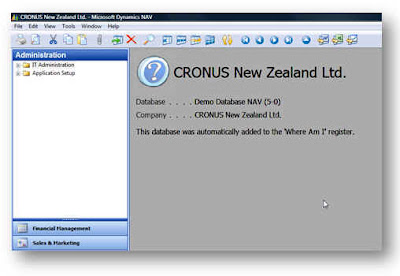


I then have a setup form that allows me to edit the info that’s going to be displayed.
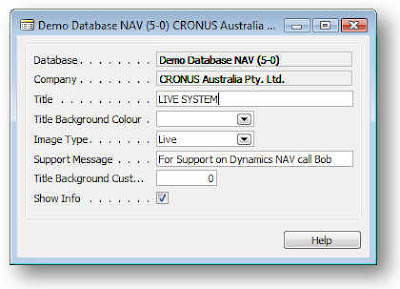


The Database and Company get filled in automatically. The Title field get’s displayed, the title Background Colour is an “unimplemented feature” :-)

The Image Type allows you to select from Live, Test and Unknown options which will show one of the following icons.
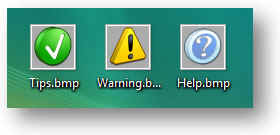


I downloaded these icons from http://tpdkcasimir.deviantart.com/ and made some adjustments to set the background colour to be the same as NAV’s background colour and resize them (when I say I did it, I mean someone with far more talent than me did it for me.)

Now this is where I hit the first weird NAVism – or maybe I was just doing something wrong. Whenever I put the icons on the form, they got stretched. Anyone know what I’m doing wrong? I thought at first that NAV had some kind of minimum size so I resized the Icons to fit the size of my NAV graphic and these got stretched again to look like this.
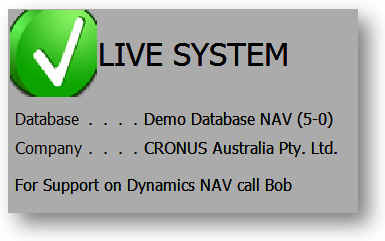


But at least you can see the idea – and the way the other data fields are being updated from the database.

The Support message appears at the bottom of the form, the Show Info tick allows you to suppress the message in certain company/database combinations – like maybe your live system. The custom background colour is another unimplemented feature.
I made a list form first and then decided a card form is a little easier to set up the data.

OK now let’s look at how I did this.

To start with, how am I going to solve the problem of my data not getting lost when I restore my live system? Well, there’s some other data that doesn’t get lost when you restore over your database in SQL and that’s the user license. The way the system keeps that is by storing it in a table called $ndo$srvproperty that lives in the master database. So I’m going to create a new table in the master database and use that to store details on my NAV databases/companies. Here’s the SQL to create the table and grant permission to public:

USE [master]
GO
/****** Object: Table [dbo].[IntergenNAVWhereAmI] Script Date: 05/09/2008 20:06:19 ******/
SET ANSI_NULLS ON
GO
SET QUOTED_IDENTIFIER ON
GO
SET ANSI_PADDING ON
GO
CREATE TABLE [dbo].[IntergenNAVWhereAmI](
[timestamp] [timestamp] NOT NULL,
[Database] [varchar](30) NOT NULL,
[Company] [varchar](30) NOT NULL,
[Title] [varchar](50) NOT NULL,
[Title Background Colour] [int] NOT NULL,
[Image Type] [int] NOT NULL,
[Support Message] [varchar](250) NOT NULL,
[Title Background Custom Colour] [int] NOT NULL,
[Show Info] [tinyint] NOT NULL,
CONSTRAINT [IntergenNAVWhereAmI$0] PRIMARY KEY CLUSTERED
(
[Database] ASC,
[Company] ASC
)WITH (PAD_INDEX = OFF, STATISTICS_NORECOMPUTE = OFF, IGNORE_DUP_KEY = OFF, ALLOW_ROW_LOCKS = ON, ALLOW_PAGE_LOCKS = ON) ON [PRIMARY]
) ON [PRIMARY]
GO
GRANT SELECT, DELETE, INSERT, UPDATE ON IntergenNAVWhereAmI TO PUBLIC
GO
SET ANSI_PADDING OFF


OK. So now we have a table we can work with. The next thing is that in each database I’m going to use this with, I’m going to need a view that references this table so NAV can access it via a linked table (you know that NAV can have linked tables that are based upon views which point to tables in other databases right?)

Here’s my code to create the view:

USE [Demo Database NAV (5-0)]
GO
/****** Object: View [dbo].[Intergen NAV Where Am I] Script Date: 05/09/2008 20:04:35 ******/
SET ANSI_NULLS ON
GO
SET QUOTED_IDENTIFIER ON
GO
CREATE VIEW [dbo].[Intergen NAV Where Am I] AS
SELECT [timestamp]
,[Database]
,[Company]
,[Title]
,[Title Background Colour]
,[Image Type]
,[Support Message]
,[Title Background Custom Colour]
,[Show Info]
FROM [master].[dbo].[IntergenNAVWhereAmI]

If you don’t create this view you won’t be able to compile the table in NAV since the table is a linked table.

Now you can import my objects into the database. Sorry for the massive amount of code but at least you can paste this into a text file and import it (I decided to stick the code at the end of the post rather than in the middle of this text.)

So we’re nearly there. The next thing is to add this code to your codeunit 1 CompanyOpen() function:

IF GUIALLOWED THEN
FORM.RUN(FORM::"Where Am I");

You’ll probably need to hack the code to change the path for the bitmaps and create the bitmap files in order to get the form to compile and obviously you must have the view created in the database before you can compile the table.

That’s it. Obviously there’s a whole heap of other things to do like to make the setup form accessible from somewhere (menu option.)

Sadly I couldn’t address the problem of being able to click on the Form and press ESC. I really want the form to stay in the background and never come to the front but I don’t think I can do this either.

So if anyone knows how to solve the these problems or feels like finishing it off, feel free to have a go – just post a comment and a link to wherever you post your stuff.

This still isn’t a great solution and I think Microsoft really need to add this as a standard feature – and make it so we can change something really useful like the window colour, etc.

Oh yer, this code is posted without warranty or guarantees. If you decide to try and implement this code and you break something – don’t call me.

Here's the code...


OBJECT Table 50500 Intergen NAV Where Am I
{
OBJECT-PROPERTIES
{
Date=08/05/08;
Time=[ 2:37:12 PM];
Modified=Yes;
Version List=;
}
PROPERTIES
{
DataPerCompany=No;
LinkedObject=Yes;
}
FIELDS
{
{ 1 ; ;Database ;Text30 }
{ 2 ; ;Company ;Text30 }
{ 3 ; ;Title ;Text50 }
{ 4 ; ;Title Background Colour;Option ;OptionString=[ ,Green,Red,Yellow,Custom] }
{ 5 ; ;Image Type ;Option ;OptionString=[ ,Live,Test,Unknown] }
{ 6 ; ;Support Message ;Text250 }
{ 7 ; ;Title Background Custom Colour;Integer }
{ 8 ; ;Show Info ;Boolean }
}
KEYS
{
{ ;Database,Company ;Clustered=Yes }
}
CODE
{

BEGIN
END.
}
}

OBJECT Form 50500 Where Am I Setup List
{
OBJECT-PROPERTIES
{
Date=08/05/08;
Time=[ 2:38:09 PM];
Modified=Yes;
Version List=;
}
PROPERTIES
{
Width=16500;
Height=6710;
TableBoxID=1000000000;
SourceTable=Table50500;
}
CONTROLS
{
{ 1000000000;TableBox;220 ;220 ;16060;5500 ;HorzGlue=Both;
VertGlue=Both }
{ 1000000001;TextBox;0 ;0 ;4400 ;0 ;HorzGlue=Both;
ParentControl=1000000000;
InColumn=Yes;
SourceExpr=Database }
{ 1000000002;Label ;0 ;0 ;0 ;0 ;ParentControl=1000000001;
InColumnHeading=Yes }
{ 1000000003;TextBox;0 ;0 ;4400 ;0 ;ParentControl=1000000000;
InColumn=Yes;
SourceExpr=Company }
{ 1000000004;Label ;0 ;0 ;0 ;0 ;ParentControl=1000000003;
InColumnHeading=Yes }
{ 1000000018;CheckBox;8202;770 ;1700 ;440 ;ParentControl=1000000000;
InColumn=Yes;
ShowCaption=No;
SourceExpr="Show Info" }
{ 1000000019;Label ;0 ;0 ;0 ;0 ;ParentControl=1000000018;
InColumnHeading=Yes }
{ 1000000005;TextBox;0 ;0 ;4400 ;0 ;ParentControl=1000000000;
InColumn=Yes;
SourceExpr=Title }
{ 1000000006;Label ;0 ;0 ;0 ;0 ;ParentControl=1000000005;
InColumnHeading=Yes }
{ 1000000007;TextBox;0 ;0 ;3157 ;0 ;ParentControl=1000000000;
InColumn=Yes;
SourceExpr="Title Background Colour" }
{ 1000000008;Label ;0 ;0 ;0 ;0 ;ParentControl=1000000007;
InColumnHeading=Yes }
{ 1000000013;TextBox;16333;0 ;4400 ;0 ;ParentControl=1000000000;
InColumn=Yes;
SourceExpr="Title Background Custom Colour" }
{ 1000000014;Label ;0 ;0 ;0 ;0 ;ParentControl=1000000013;
InColumnHeading=Yes }
{ 1000000009;TextBox;0 ;0 ;1980 ;0 ;ParentControl=1000000000;
InColumn=Yes;
SourceExpr="Image Type" }
{ 1000000010;Label ;0 ;0 ;0 ;0 ;ParentControl=1000000009;
InColumnHeading=Yes }
{ 1000000011;TextBox;0 ;0 ;4400 ;0 ;ParentControl=1000000000;
InColumn=Yes;
SourceExpr="Support Message" }
{ 1000000012;Label ;0 ;0 ;0 ;0 ;ParentControl=1000000011;
InColumnHeading=Yes }
{ 1000000015;CommandButton;9240;5940;2200;550;
HorzGlue=Right;
VertGlue=Bottom;
Default=Yes;
PushAction=LookupOK;
InvalidActionAppearance=Hide }
{ 1000000016;CommandButton;11660;5940;2200;550;
HorzGlue=Right;
VertGlue=Bottom;
Cancel=Yes;
PushAction=LookupCancel;
InvalidActionAppearance=Hide }
{ 1000000017;CommandButton;14080;5940;2200;550;
HorzGlue=Right;
VertGlue=Bottom;
PushAction=FormHelp }
}
CODE
{

BEGIN
END.
}
}

OBJECT Form 50501 Where Am I
{
OBJECT-PROPERTIES
{
Date=09/05/08;
Time=[ 7:52:40 PM];
Modified=Yes;
Version List=;
}
PROPERTIES
{
XPos=0;
YPos=0;
Width=17270;
Height=5060;
Editable=No;
BackColor=11250603;
BorderStyle=None;
CaptionBar=None;
Minimizable=No;
Maximizable=No;
Sizeable=No;
SaveControlInfo=No;
SavePosAndSize=No;
SaveColumnWidths=No;
InsertAllowed=No;
DeleteAllowed=No;
ModifyAllowed=No;
SaveTableView=No;
OnOpenForm=BEGIN
SetDetails();
END;

OnQueryCloseForm=VAR
l_ApplicationManagement@1000000000 : Codeunit 1;
BEGIN
//MESSAGE(FORMAT(l_ApplicationManagement.CanInfoFormClose));
END;

}
CONTROLS
{
{ 1000000009;Frame ;0 ;0 ;17270;5060 ;Focusable=No;
ShowCaption=No;
Border=No }
{ 1000000001;Image ;0 ;0 ;2310 ;2310 ;Name=Tick;
ParentControl=1000000009;
InFrame=Yes;
Bitmap=C:\Users\davidr\Desktop\tips.bmp }
{ 1000000000;Image ;0 ;0 ;2310 ;2310 ;Name=Warning;
ParentControl=1000000009;
InFrame=Yes;
Bitmap=C:\Users\davidr\Desktop\Warning.bmp }
{ 1000000002;Image ;0 ;0 ;2310 ;2310 ;Name=Question;
ParentControl=1000000009;
InFrame=Yes;
Bitmap=C:\Users\davidr\Desktop\Help.bmp;
OnPush=VAR
l_IntergenNAVWhereAmI@1000000001 : Record 50500;
BEGIN
END;
}
{ 1000000005;TextBox;3520 ;2530 ;7260 ;660 ;Editable=No;
Focusable=No;
ParentControl=1000000009;
InFrame=Yes;
Border=No;
FontSize=12;
CaptionML=ENZ=Database;
SourceExpr=g_DatabaseName }
{ 1000000006;Label ;110 ;2530 ;3300 ;660 ;ParentControl=1000000005;
FontSize=12 }
{ 1000000003;TextBox;2310 ;0 ;14850;2310 ;Name=Title;
Editable=No;
Focusable=No;
ParentControl=1000000009;
InFrame=Yes;
BackTransparent=Yes;
Border=No;
FontSize=24;
SourceExpr=g_Title }
{ 1000000004;TextBox;3520 ;3300 ;7260 ;660 ;Editable=No;
Focusable=No;
ParentControl=1000000009;
InFrame=Yes;
Border=No;
FontSize=12;
CaptionML=ENZ=Company;
SourceExpr=g_CompanyName }
{ 1000000007;Label ;110 ;3300 ;3300 ;660 ;ParentControl=1000000004;
FontSize=12 }
{ 1000000008;TextBox;110 ;4290 ;17050;660 ;Editable=No;
Focusable=No;
ParentControl=1000000009;
InFrame=Yes;
Border=No;
FontSize=12;
CaptionML=ENZ=Database;
SourceExpr=g_SupportMessage }
}
CODE
{
VAR
g_Title@1000000000 : Text[50];
g_DatabaseName@1000000001 : Text[50];
g_CompanyName@1000000002 : Text[50];
g_SupportMessage@1000000003 : Text[250];

PROCEDURE SetDetails@1000000001();
VAR
l_IntergenNAVWhereAmI@1000000001 : Record 50500;
l_Session@1000000000 : Record 2000000009;
BEGIN
CurrForm.Tick.VISIBLE(FALSE);
CurrForm.Warning.VISIBLE(FALSE);
CurrForm.Question.VISIBLE(FALSE);

l_Session.SETRANGE("My Session", TRUE);

IF l_Session.FINDFIRST THEN
g_DatabaseName := l_Session."Database Name"
ELSE
g_DatabaseName := 'Database Not Found!';

g_CompanyName := COMPANYNAME;

IF NOT l_IntergenNAVWhereAmI.GET(g_DatabaseName, g_CompanyName) THEN BEGIN
l_IntergenNAVWhereAmI.Database := g_DatabaseName;
l_IntergenNAVWhereAmI.Company := g_CompanyName;
l_IntergenNAVWhereAmI."Image Type" := l_IntergenNAVWhereAmI."Image Type"::Unknown;
l_IntergenNAVWhereAmI.Title := g_CompanyName;
l_IntergenNAVWhereAmI."Title Background Colour" := l_IntergenNAVWhereAmI."Title Background Colour"::" ";
l_IntergenNAVWhereAmI."Image Type" := l_IntergenNAVWhereAmI."Image Type"::Unknown;
l_IntergenNAVWhereAmI."Support Message" := 'This database was automatically added to the ''Where Am I'' register.';
l_IntergenNAVWhereAmI."Show Info" := TRUE;
l_IntergenNAVWhereAmI.INSERT;
END ELSE
IF NOT l_IntergenNAVWhereAmI."Show Info" THEN
CurrForm.CLOSE;

CASE l_IntergenNAVWhereAmI."Image Type" OF
l_IntergenNAVWhereAmI."Image Type"::Live :
BEGIN
CurrForm.Tick.VISIBLE(TRUE);
END;
l_IntergenNAVWhereAmI."Image Type"::Test :
BEGIN
CurrForm.Warning.VISIBLE(TRUE);
END;
l_IntergenNAVWhereAmI."Image Type"::Unknown :
BEGIN
CurrForm.Question.VISIBLE(TRUE);
END;
END;

g_Title := l_IntergenNAVWhereAmI.Title;
g_SupportMessage := l_IntergenNAVWhereAmI."Support Message";
END;

BEGIN
END.
}
}

OBJECT Form 50502 Where Am I Setup Card
{
OBJECT-PROPERTIES
{
Date=08/05/08;
Time=[ 5:15:14 PM];
Modified=Yes;
Version List=;
}
PROPERTIES
{
Width=9790;
Height=6160;
InsertAllowed=No;
DeleteAllowed=No;
SourceTable=Table50500;
}
CONTROLS
{
{ 1 ;Frame ;220 ;220 ;9350 ;4950 ;HorzGlue=Both;
VertGlue=Both;
ShowCaption=No }
{ 2 ;TextBox ;3850 ;440 ;5500 ;440 ;Editable=No;
ParentControl=1;
InFrame=Yes;
SourceExpr=Database }
{ 3 ;Label ;440 ;440 ;3300 ;440 ;ParentControl=2 }
{ 4 ;TextBox ;3850 ;990 ;5500 ;440 ;Editable=No;
ParentControl=1;
InFrame=Yes;
SourceExpr=Company }
{ 5 ;Label ;440 ;990 ;3300 ;440 ;ParentControl=4 }
{ 6 ;TextBox ;3850 ;1540 ;5500 ;440 ;ParentControl=1;
InFrame=Yes;
SourceExpr=Title }
{ 7 ;Label ;440 ;1540 ;3300 ;440 ;ParentControl=6 }
{ 8 ;TextBox ;3850 ;2090 ;2750 ;440 ;ParentControl=1;
InFrame=Yes;
SourceExpr="Title Background Colour" }
{ 9 ;Label ;440 ;2090 ;3300 ;440 ;ParentControl=8 }
{ 10 ;TextBox ;3850 ;2640 ;2750 ;440 ;ParentControl=1;
InFrame=Yes;
SourceExpr="Image Type" }
{ 11 ;Label ;440 ;2640 ;3300 ;440 ;ParentControl=10 }
{ 12 ;TextBox ;3850 ;3190 ;5500 ;440 ;ParentControl=1;
InFrame=Yes;
SourceExpr="Support Message" }
{ 13 ;Label ;440 ;3190 ;3300 ;440 ;ParentControl=12 }
{ 14 ;TextBox ;3850 ;3740 ;1700 ;440 ;ParentControl=1;
InFrame=Yes;
SourceExpr="Title Background Custom Colour" }
{ 15 ;Label ;440 ;3740 ;3300 ;440 ;ParentControl=14 }
{ 16 ;CheckBox ;3850 ;4290 ;440 ;440 ;ParentControl=1;
InFrame=Yes;
ShowCaption=No;
SourceExpr="Show Info" }
{ 17 ;Label ;440 ;4290 ;3300 ;440 ;ParentControl=16 }
{ 18 ;CommandButton;7370 ;5390 ;2200 ;550 ;HorzGlue=Right;
VertGlue=Bottom;
PushAction=FormHelp }
}
CODE
{

BEGIN
END.
}
}

Monday, 14 April 2008

Field Captions and the CaptionClass Property

I recently needed to have a field that had a changing field caption based upon some conditions. I knew I had seen this in the standard system for sales orders where the Unit Price field changes between “Unit Price Incl. VAT” and “Unit Price Excl. VAT” depending on how you tick the “Prices Including VAT” field so that is where I started.

If you look on the Unit Price field properties on the Sales Line table you will see that the CaptionClass property is set to GetCaptionClass(FIELDNO("Unit Price")).

That looks like a function call so I take a look in the functions on the table.

GetCaptionClass(FieldNumber : Integer) : Text[80]
IF NOT SalesHeader.GET("Document Type","Document No.") THEN BEGIN
SalesHeader."No." := '';
SalesHeader.INIT;
END;
IF SalesHeader."Prices Including VAT" THEN
SalesPricesIncVar := 1
ELSE
SalesPricesIncVar := 0;
CLEAR(SalesHeader);
EXIT('2,' + FORMAT(SalesPricesIncVar) + ',' + GetFieldCaption(FieldNumber));


Well this seems to be returning either ‘2,1,Unit Price’ or ‘2,0,Unit Price’ depending on whether the Sales Header has the “Prices Including VAT” field set to TRUE or FALSE. How weird is that? Clearly that is not what is displaying on the form.

If you take a look in the C/SIDE Reference Guide (select the option from the Help menu of the application,) there is an interesting line that says “The expression is then interpreted by Trigger 15 in CodeUnit 1.”

Let’s take a look at that codeunit trigger.

CaptionClassTranslate(Language : Integer;CaptionExpr : Text[80]) : Text[80]
CommaPosition := STRPOS(CaptionExpr,',');
IF (CommaPosition > 0) THEN BEGIN
CaptionArea := COPYSTR(CaptionExpr,1,CommaPosition - 1);
CaptionRef := COPYSTR(CaptionExpr,CommaPosition + 1);
CASE CaptionArea OF
'1' : EXIT(DimCaptionClassTranslate(Language,CaptionRef));
'2' : EXIT(VATCaptionClassTranslate(Language,CaptionRef));
'3' : EXIT(CaptionRef);
END;
END;
EXIT('');


This is one of those funny functions that gets called by the system whether you like it or not – you don’t pass the parameters to it but you can guess that what the values contain. I am guessing that in my example the CaptionExpr will contain either ‘2,1,Unit Price’ or ‘2,0,Unit Price’.

On examining the code, I can see that we are pulling out a number from the start of the string into a variable called CaptionArea (which in our case is 2) and using that to either run a new function or return the part of the string that appeared after the number. In our example we are calling VATCaptionClassTranslate(Language,CaptionRef).

So, let’s take a look at what this function does:

VATCaptionClassTranslate(Language : Integer;CaptionExpr : Text[80]) : Text[30]
CommaPosition := STRPOS(CaptionExpr,',');
IF (CommaPosition > 0) THEN BEGIN
VATCaptionType := COPYSTR(CaptionExpr,1,CommaPosition - 1);
VATCaptionRef := COPYSTR(CaptionExpr,CommaPosition + 1);
CASE VATCaptionType OF
'0' : EXIT(COPYSTR(STRSUBSTNO('%1 %2',VATCaptionRef,Text016),1,30));
'1' : EXIT(COPYSTR(STRSUBSTNO('%1 %2',VATCaptionRef,Text017),1,30));
END;
END;
EXIT('');


This function starts by stripping out another parameter into a variable called VATCaptionType and the remainder of the string goes into CaptionRef. Then as you can see the VATCaptionType is evaluated and it returns either ‘Unit Price Excl. VAT’ or ‘Unit Price Incl. VAT’. To know this you have to know that Text016 and Text017 contain ‘Excl VAT’ and ‘Incl. VAT’ respectively.

So that’s it. A good example of how to achieve dynamic field captions using the standard application.

But just to round off, what if I wanted to have my own field with a dynamics caption? Well if you go back to the CaptionClassTranslate function in codeunit 1, you’ll see that option 3 will simply return the value that you passed it back to the caption for the field. This is how you would do it.

Let’s say that we are implementing NAV for a client that wants three addition fields on the Customer Card, the currently have them in their old system called “User Field 1”, “User Field 2” and “User Field 3”. Don’t you just hate that sort of thing? Anyway they say that they want to change the caption to something more meaningful but they can’t decide on what to call them (it’s a lame example I know but it’s late so stick with me.) Being a cunning NAV developer you decide to create three setup fields on the Sales & Receivables Setup table called “Field Caption 1”, “Field Caption 2” and “Field Caption 3”. You can then let the users type the caption they want in these fields and use them for the field captions for the new fields you will add on the customer card.

First of all, you create the fields on the Customer table as “User Field 1”, “User Field 2” and “User Field 3”. Then you create a little function on the Customer table that will take an integer parameter (valued as 1, 2 or 3) and will return a Text value that is the right caption. Let’s call our function “UserFieldCaption”. It might look something like this:

UserFieldCaption(p_FieldNo : Integer) : Text[80]
l_SalesReceivSetup.GET('');
CASE p_FieldNo OF
1: EXIT(l_SalesReceivSetup."Field Caption 1");
2: EXIT(l_SalesReceivSetup."Field Caption 2");
3: EXIT(l_SalesReceivSetup."Field Caption 3");
ELSE
ERROR('UserFieldCaption function on Customer table called with invalid field number of %1',p_FieldNo);
END;


Now on our User Field 1 on the Customer table we would set the CaptionClass property to

'3,'+UserFieldCaption(1)


The other two User Field CaptionClass values will be similar – hopefully you can figure this out yourself.

Once you have compiled everything, set the values of the captions on the Sales & Receivables Setup and Open the Customer table from the object designer. There you should see the caption for your new fields using the value you entered on the setup table.

Wednesday, 9 April 2008

Try Catch in Dynamics NAV

This has to be up there on my list of "all time desirable features" for NAV. As you probably know NAV has an ERROR function that is used to, well, throw errors. It will abort the current transaction (and roll back to the point of the last commit) and display the text message that you selected in an error dialogue box.

The thing is, sometimes you don't want it to do the abort and rollback. For example if we are importing a file or maybe a series of files, we may just want to log the error somewhere and carry on with the next file. You can do this in NAV 5.0 using the new GETLASTERRORTEXT function.

Here's an example of how to do it.

First of all, create a simple codeunit that, when run, will throw an error:

OBJECT Codeunit 50000 ThrowError
{
OBJECT-PROPERTIES
{
Date=09/04/08;
Time=[ 9:34:55 PM];
Modified=Yes;
Version List=;
}
PROPERTIES
{
OnRun=BEGIN
// Call a function that throws an error.
DoSomething();
END;

}
CODE
{

PROCEDURE DoSomething@1000000000();
BEGIN
ERROR('Hey Look I threw an error.');
END;

BEGIN
END.
}
}


When you run this codeunit you get the following error message displayed.


Now create another codeunit that will call the first one and trap the error it generates:

OBJECT Codeunit 50001 Test Throw Error
{
OBJECT-PROPERTIES
{
Date=09/04/08;
Time=[ 9:35:58 PM];
Modified=Yes;
Version List=;
}
PROPERTIES
{
OnRun=VAR
l_ThrowError@1000000000 : Codeunit 50000;
BEGIN
IF NOT l_ThrowError.RUN THEN
MESSAGE(GETLASTERRORTEXT+ ' - or did I?');
END;

}
CODE
{

BEGIN
END.
}
}


When you run this second codeunit, even though it calls the first codeunit, you don't see the error message. Instead you see this:


You'll need to make a COMMIT before trying to trap the return code from running the codeunit but if you have uncommitted transactions you'll get a run time error telling you this. Unfortunately this only works when you Run a codeunit so you either have to use lots of codeunits or write some kind of clever dispatcher that allows you to set the action on the codeunit first and then run it.

So my most desired feature would require some language additions to C/AL. Introduce a TRY CATCH language construct – it would work similar to an IF ELSE statement. Here is an example:


TRY
BEGIN
DoSomething();
DoSomethingElse();
END
CATCH
BEGIN
MESSAGE(GETLASTERRORTEXT);
END;


I have put the BEGIN and END in the CATCH part to illustrate how it work in a similar manner to the IF ELSE construct but it wouldn't be needed. The neat thing about this is you would not need to use a codeunit just to be able to trap the error. The same rules regarding commits, etc. would apply.

I guess I'll just nip over to the Connect site and suggest this little beauty for the product team to ponder over.

Tuesday, 18 March 2008

Quick “Debugging” Tip

Sometimes I want to check something in a bit of code and I don't want to have to step through the debugger. Maybe I want to check the filters that are being applied to a table, maybe it's the value in a particular field. Here's a quick bit of code that you can use to check on a value and, if you're not happy with the value abort the process.

In my example, I wanted to check the table view that had been applied to a record variable. I want the program to stop at the point of my message (something the MESSAGE function doesn't do as NAV saves up messages for a convenient point in time.) I also want to be able to abort the execution in order to give me chance to fix something and try again (something you can't do when debugging with the debugger unless you kill the NAV application in a brutal way.)

Here's the code I put in:

IF NOT CONFIRM(g_JobLedgerEntry.GETVIEW) THEN

ERROR('');

Notice that I'm using the Silent Abort from Vjeko's blog. This will display a confirmation box with the details I am looking for. If I click No, the process aborts and rolls back, allowing me to change some values and run it again.

Friday, 14 March 2008

Look at me! I’m a balloon!

This has got nothing to do with Dynamics NAV so if you're looking for news on ERP systems, leave now. If you are squeamish about medical procedures then you should also leave. Hi Dad – just you and me reading this now.

I am gluten intolerant. That means if I eat anything with Gluten in it I feel crook. Today I went for a Esophagogastroduodenoscopy to see if I have coeliac disease (the disease sounds bad but basically it means you can't eat gluten without it making you crook and you have damage to the bits of your gut that help you absorb nutrients.) There is no cure other than to stop drinking beer, eating pizza, burgers, toast, pasta, etc. So, not too bad, right?

Anyway, back to the procedure. I was given the choice of a local anaesthetic spray (that numbs the throat) or the spray and a sedative. I was told that if I had just the local I would be able to watch the procedure on a video monitor. I was also told that the guy before me just had the local and he was able to keep himself calm, control his breathing and he got through it fine. I was also told that the sedative would make me feel drowsy and unable to do pretty much anything for the rest of the day. I was attracted to the idea of watching the procedure on the video monitor (my wife says this is the geek in me winning out of the sensible part of me.) Now if you ever find yourself in the unfortunate position to be asked if you want a sedative before someone shoves a piece of hose down your throat and pumps your stomach up like a balloon, the correct answer is "Hell yes!"

As for the video: the doctor stood in front of my screen so I didn't see a thing! But the procedure was so unpleasant that there could have been a small family of pixies living in my stomach and I wouldn't have cared. There were several people watching the procedure (I am guessing they were students) and none of them would make eye-contact afterward. This was probably due to the strange retching-gagging-belching noise I was making and the look of fear on my face. I think they were thinking "Dear God! What did we just do to that man?"

So the purpose of this blog posting is that if anyone is searching Google with the question: "Should I take the sedative before having an EGD, OGD, upper GI endoscopy (UGIE), or gastroscopy" then they can read this and know that no matter how appealing seeing their insides on a video screen seems, you should take the drugs!

Sunday, 10 February 2008

Dynamics Blog - Check this out!

I have a "Google Alert" set up to keep me up to date with news and blog postings that mention Dynamics NAV, Navision, etc. It is rare that the links are that interesting, but today it came up with a link to a blog that shows there are some real gems out there! I have even added the link to my Favourite Blogs links on the right. You can find the blog at http://dynamicsblog.wordpress.com/.

The first handful of posts were very useful, well written and funny. Presenting technical and useful material in a manner that is interesting to read is not an easy thing to do. The author also writes about nearly giving up due to a lack of comments or readers. I know what that's like too!

Nice one Vjeko! Let's hope you keep the posts coming.

Tuesday, 11 December 2007

Test Drive Microsoft Dynamics NAV 5.0

This link came up on my Google Blog Search for Dynamics NAV:

http://www.dynamicsnavtestdrive.com/

By logging onto the test drive environment using your web browser, you will be able to experience Microsoft Dynamics NAV first hand without the need of installing it on your computer. You can explore the product on your own, or follow along guided exercises and demos.

Monday, 26 November 2007

3-part Format String

I mentioned in the previous post that you could use a 3-part formatting string in the format property of your numeric field to display blank when the number is 0.

Here is an example of a 3-part format property setting. If you put this in the Format field:

="$#,###;($#,###);#"

Then this says:

  • When Positive use $#,### which is “Prefix with Dollar sign, blank when zero, comma thousands separator, no decimal places”
  • When Negative use ($#,###) which is “Same as positive but within brackets”
  • When 0 use # which is “Blank”.
This works quite nicely. Don't try using special characters like "C" for currency in your 3-part format string because this special character is itself interpreted as a 3-part string and you'll find it doesn't work.

Reporting Services Divide by Zero Error in Report Expression

It’s a real pain – if I have a field that I want to calculate as one field divided by another, I have found that I get a divide by zero error when one of the fields is 0.

Normally, I would do a quick check on the field I am dividing by (the divisor) before using it in a calculation. In a field expression, the only way to include this kind of check is with an inline if statement. So I would have something like this in my report expression:

=IIF(Fields!Budget.Value = 0, "", Fields!Budget.Actual / Fields!Budget.Value)

But there is a problem with this. The False part of the IIF function still gets evaluated and your field shows #Error instead of a blank as expected.

There is a really simple way around this – create your own VB.NET function and call this from within the expression. Creating a VB.NET function is really easy as long as you are playing nicely in the sandbox (i.e. not trying to access any of the machine’s resources.) Here is a sample function that you can paste into the Code property of the report:

Public Shared Function VarPercent(ByVal Actual As Decimal, ByVal Budget As Decimal) As Decimal
If Budget = 0 Then
Return 0
End If
Return (Actual / Budget)
End Function


To use the function, just put the following in your expression:

=code.VarPercent(Fields!Actual.Value,Fields!Budget.Value)

That’s it!

If the divisor is 0, we return 0. We could of course return an empty string – although you can just as easily do this by formatting the field using a formatting expression that shows blank for zeros.