Friday, 24 April 2009

NAV 2009 Performance Guide is here

The long awaited NAV 2009 Performance Guide is here. You can download it from the mbs.microsot.com site.

You should download the document and read it to draw your own conclusions from the tests that were performed. I found the forty-page document quite heavy going with a lot of technical results (that I didn't fully understand) and some limited conclusions of the analysis. I did find the summaries useful, it's just that I could have used more summary and less data.

One interesting conclusion, for me, was that a single NAV Server appears to be able to comfortably handle 50 concurrent users. This was based upon the NAV Server application, being a 32-bit application that can work with 3GB of RAM or less, showing a 1.7GB memory consumption for 50 concurrent users. Obviously this is dependent on the type of hardware you are using and the scenarios your users are likely to be running. The document contains sufficient disclaimers on the findings so, as is often the nature of benchmarking results, this information is more of a guideline than a rule.

With respect to virtualisation, the team do not recommend using a Hyper-V virtualised environment for production use due to the reduced performance.

Personally I found that this document fell short of my expectations. It is clear that the team have put a lot of effort into their studies; however, I would like to see a guide to sizing hardware that is easy to use and understand. It would be nice if we could have some recommendations that answer the following questions:

  • What is the maximum number of users?
  • At what point should I separate the tiers on to three machines over two?
  • How many users should I be running per NAV Server?

I would also like to see the scenarios run in the Classic architecture to see what performance benefits we get from the three-tier architecture.

Saturday, 18 April 2009

My New Toy - Sony PRS-505


I’ve tried to read electronic books (ebooks) in the past but have always preferred paper books (pbooks). As my good friend Vjeko said, “I like reading lying down - and I most certainly don't like the feel of laptop lid hitting my forehead when I fall asleep :-)”

Having said all of that, I have bought a new toy that has changed my reading world and has convinced me that, whilst the pbook will probably never die out completely, the age of the ebook seems to almost upon us. The new generation of readers are become cheaper and more accessible and more and more publishers are getting their books out in ebook formats.

There are a lot of reading devices available, and if you’re interested in learning about them, I can recommend the forum http://www.mobileread.com/. I spent a while looking at the various devices on this site before a forum member offered to sell me a Sony PRS-505 second hand. I have now had the device for nearly two weeks and have finished reading “Simple Genius” by David Baldacci. David’s book is great and I really enjoyed it – he certainly is a very talented author, however I enjoyed reading the book even more because I was reading on my new reader.

If you’ve read ebooks on a phone or PDA or laptop, you’ll know that it can be a frustrating experience. The back-light on these devices can make your eyes tired. Laptops have a tendency to get hot and take a while to boot – not to mention the rate they chew through batteries. The Sony PRS-505 on the other hand does not use a traditional LCD display but instead using a technology called e-ink that has a similar effect to reading a glossy magazine it only uses power to change a page which means you will be able to read for hours and hours on a single charge. The internal storage and memory cards mean you can carry hundreds of books with you.

Incidentally, you can buy a PDF format e-book version of Implementing Microsoft Dynamics NAV 2009 from the PACKT web site. I’m looking forward to future devices that promise larger displays (good for reading A4 PDF documents) such as the Plastic Logic Reader, but for now, I’m really pleased with my new toy.

Sunday, 15 March 2009

’sup dog?

Well, it’s been a while since I last posted. I’ve been working on a new NAV 2009 implementation which has been keeping me very busy. I’ve battled with Kerberos delegation on a three-tiered architecture. I’ve got to grips with the form transformation tool and the transformation of MenuSuites. It’s been really good fun and I’ll share some of what I’ve learnt in some later posts. I definitely want to make a post on the Kerberos stuff because I really battled with it – but for now, you can be assured that the Installation guide on MSDN is right and although it seems a bit weird what you need to go through, it does work.

The Implementing Microsoft Dynamics NAV 2009 book seems to be doing well and I’ve finished reading it – am I the first person to read this? There are no reviews out there yet and I can’t really review my own book can I? It’s really quite good and I’m very pleased with the end result. I’m now working on getting a decent www.teachmenav.com site up and running so we can put up the downloads and links and maybe get a bit of discussion going around the topics we touched on in the book. We’ve put something up there that looks pretty and re-directs to other sites, but I want to make a mini-forum based on Community Server.

This weekend I’ve installed two pieces of software from two companies that are often portrayed as arch-enemies: Microsoft and Apple. On the Microsoft front I installed the new Windows Live tools including Windows Live Writer that I think has to be the best blogging tool I have ever come across. I’m very impressed where things are going with Microsoft and the quality of their software really blows my socks off. Windows 7 looks good, IE8 looks good. The Live services are getting to be pretty awesome.

And then on to Apple. Grrrr! I didn’t want to upgrade my iTunes, but it seemed to install some kind of Genius thing that seemed to corrupt my library and made the app hang. So I figured I’ll load the latest upgrade. An 81MB download and reboot later and the application runs at least, but where are my podcasts? All of my podcast subscriptions are gone. Apple make really nice hardware but I don’t know why people rave about their software. It does nothing for me.

Saturday, 31 January 2009

Object Designer in RoleTailored Client

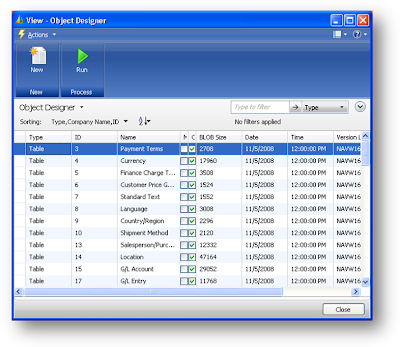
Here’s a bit of fun for anyone that wants to play around with development in the new Virtual PC image for NAV 2009. I’ll take you through building an Object Designer page in the RoleTailored client. Obviously there are some things you won’t be able to do (like actually design objects) but you will find it useful – I have done – and it’s a good exercise to follow. Here’s an example of the end result.
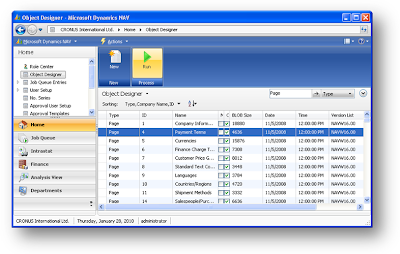
As you may know, you can run pages (and some other objects) in the RoleTailored client by using a hyperlink command entered into your browser address bar. The thing is, I often can’t remember the syntax, and need to open my book (because I know I wrote the details there). You could also find the answer by searching the online help or searching blog posts. The syntax I use is: dynamicsnav:////runpage?page=358 as this will launch the page in my default company. Typically, I want to create a quick page or try something out without going to the trouble of adding the object to the MenuSuite, then finding it in the Departments Page and running it, so I use this hyperlink command. It works OK, but I figured it would be good to have a list place of objects that I could use in the RoleTailored client to run any page.
For a start, we’re going to need an Object Designer page. This exercise is based on the new virtual PC image for NAV 2009 – (you’re going to need a Developer’s License installed before you can do this exercise).

1) Launch the Classic Client with SQL Server and make sure you are running with a Developer’s license.

2) Run the Object Designer (Shift+F12), click the Page button to work with Pages in the Designer and click the New button to create a new Page.
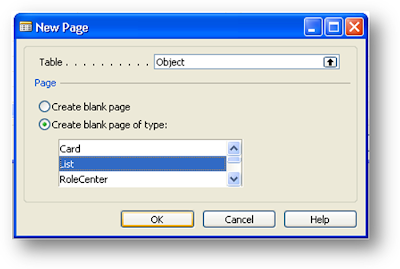


3) In the New Page window enter Object in the Table field and select the option create a blank page of type List. Click OK.
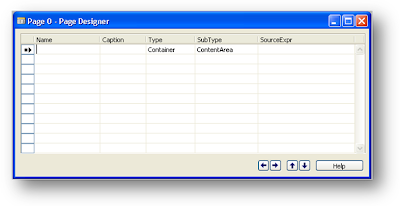


4) In the Page Designer, you have a blank line. The top line needs to be a ContentArea Container, and the quickest way to get one in there is to put something in the Caption field, move off the line and then move back on to it and delete the contents of the Caption field.

5) Now on the next line down, create a record of type Group and SubType Repeater. This is how we get a table type control in a list. Move down to the next blank line. Your page should look like this.
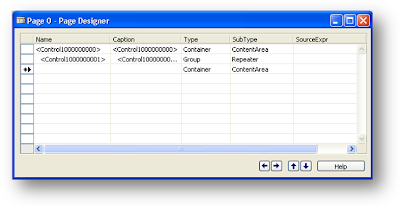


6) Now click on the Field Menu button from the toolbar or select View | Field Menu from the menu bar.
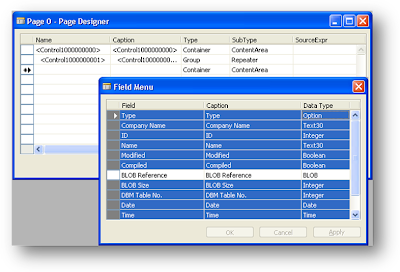


7) Highlight each of the lines except the BLOB field. Then click back on to the Page Designer. It’s not a drag-and-drop, but more like a click-and-click.

8) The system will ask if you want to add the selected fields to the page. Select Yes while mumbling “duh?” to yourself. Your page should look something like this.
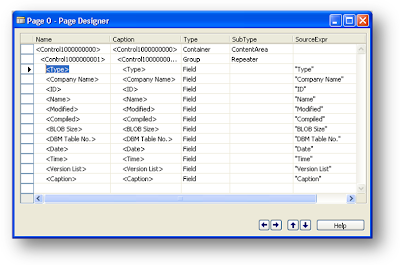


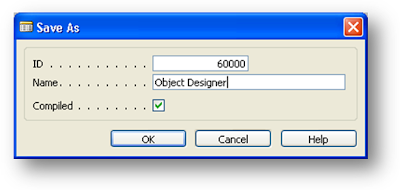
9) Now would be a good time to save your work. Hit Ctrl+S and enter Object ID 60000 and call it Object Designer. If you didn’t load your developer’s license on the Virtual PC image, you’re going to be pretty grumpy now.


10) I don’t want all of those fields to be immediately visible, but it’s nice to have them on the Page just in case I want to use them but we can hide them by setting the Visible property. For example, with your cursor on the Company Name field, press Shift+F4 to bring up the properties and set the Visible property to FALSE.
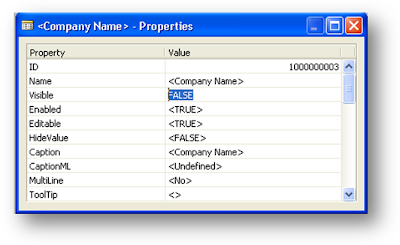


11) Change the Visible property to FALSE for DBM Table No. and Caption too. Save your changes again with Ctrl+S.

12) Now we want to add the ability to run our objects so we need an Action on the page. Move your cursor on the Page Designer so that it is on a blank line and select Actions from the View menu (if you are on a blank line this will give you Actions for the Page which is what we want).

13) Create a new ActionContainer with a SubType of ActionItems and then on the next line create an Action of type Action with a Caption of Run. We want to set some properties on this Action so that it will appear in our Action Pane when we run the Page.
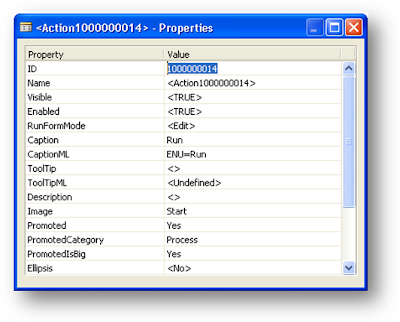


14) Set the Image property to Start (that’s the name of the image), Promoted to Yes, and PromotedIsBig to Yes. I also set the PromotedCategory to Process.

You could try running our new page now with dynamicsnav:////runpage?page=60000 but you will discover that our Action Button does not appear. This is because we don’t have any code or properties against the button that will do anything. We also want to filter our records so we only see objects with a Type greater than 0. Let’s continue where we left off. First of all we’ll filter the records to only show a limited range of object type.

15) We need to set the SourceTableView property for the Page, so with a blank line on the Page Designer selected, press Shift+F4 to bring up the Page Properties.
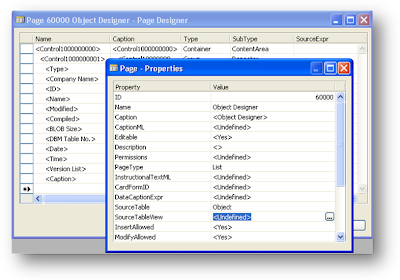


16) Type WHERE(Type=FILTER(>TableData)) into the SourceTableView field (you can use the assist edit buttons to figure out this value if you wish, or you can just type it straight in to the field).

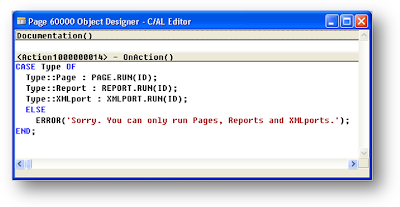
17) Close the Properties window and with the blank line still selected, bring up our Actions once more. This time, press F9 on our new Action when it appears to bring up the C/AL Editor window.

18) Enter the following Code.


19) Save everything with Ctrl+S and try to run our Page with dynamicsnav:////runpage?page=60000. Bingo. If everything worked OK, you should have something like this.


Nearly there. Just one tiny change to make. I’d like my new list to be available as a List Place in my Role Center, so I’m going to modify the default Role Center (on the Virtual PC image) which is Page 9018.

20) Edit page 9018 and with a blank line selected, bring up the Actions window to show the Actions for the Page.

21) Insert a new Action in the HomeItems Action Container. Type must be Action and set the Caption to Object Designer.
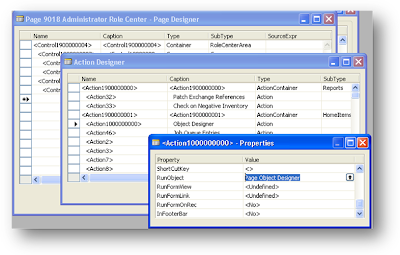


22) Finally, set the RunObject property for the Action to Page 60000, the system will translate that to Page Object Designer as you move off the field (assuming you have followed these instructions).

23) Save everything and restart the RoleTailored client (unfortunately the Refresh button doesn’t re-read the Role Center so we need to re-open the RoleTailored client).

24) That’s it. Our very own RoleTailored Object Designer. Well Object Runner really, but hopefully you learnt a few things along the way.

If you want the tool but not the learning experience, you can download the objects from DUG. As a matter of interest, you can use Mark Brummel’s discovery about running the Classic client reports from the RoleTailored client to run Forms as well. Maybe I’ll post that another day.

Sunday, 18 January 2009

Where is that MenuSuite option in NAV 2009? Part 2.

In my first post on the MenuSuite search, I discovered that in NAV 2009 we can get at the MenuSuite through a blob field on the Object Metadata table.

In this post, I'll go one step further to see if we can start to do something with the blob.

The first thing I wanted to know is: do I need to worry about merging the various MenuSuites? When the MenuSuite is exported as text it contains only the differences that should be applied to the previous MenuSuite. For example 1080 (Partner Level) stores the differences that need to be applied to 1020 (Regional level) which in turn stores the differences that need to be applied to 1010 (Dept – MBS level).

I used a text comparison tool to compare my 1080 XML export to my 1020 XML and I can see that the 1080 is the full combined MenuSuite – perfect! This means I don’t have to worry about merging these files together. If I search for the items I want in the MenuSuite with the highest number, I will be looking at the correct menu structure.

Next I need to know what I am looking for in the XML file. If I take a look through the 1080 file, I can see we are looking for an Actions node with an xsi:type attribute of “ActionDefinition”. This will give me the node that is going to run an option. Within this node I can see there is a CaptionML attribute that I can search to try and match the string I am looking for.

My next programming task is to see if I can get the XML document loaded into an XMLDOM automation control inside NAV. Once again, this was a lot easier than I thought it was going to be. I'm not doing much with the XMLDOM, simply loading it and then saving it again so I can check everythig is working. Here's the code:
OBJECT Codeunit 91360 Export MenuSuite Objects
{
OBJECT-PROPERTIES
{
Modified=Yes;
Version List=;
}
PROPERTIES
{
OnRun=VAR
l_ObjectMetadata@1000000004 : Record 2000000071;
l_XMLDoc@1000000000 : Automation "{F5078F18-C551-11D3-89B9-0000F81FE221} 4.0:{F6D90F11-9C73-11D3-B32E-00C04F990BB4}:'Microsoft XML, v4.0'.DOMDocument";
l_InStream@1000000001 : InStream;
BEGIN
// MenuSuite items in the RoleTailored client are stored in the range 1000..1999
// They map to the Classic client numbers but with 1000 added to the number.

CREATE(l_XMLDoc, FALSE, FALSE);

l_ObjectMetadata.SETRANGE("Object Type", l_ObjectMetadata."Object Type"::MenuSuite);
l_ObjectMetadata.SETRANGE("Object ID", 1000, 1999);

// The XML document for the highest number contains all nodes not just the changes.
// so we only need to do a FINDLAST
IF NOT l_ObjectMetadata.FINDLAST THEN
ERROR('Something went wrong. There was no Object Metadata for the RoleTailored MenuSuites.\'+
'This sample only works with NAV 2009.');

l_ObjectMetadata.CALCFIELDS(Metadata);

l_ObjectMetadata.Metadata.CREATEINSTREAM(l_InStream);

l_XMLDoc.load(l_InStream);

// Just to check to see if I have my XMLDoc loaded correctly, I'm going to save it and
// then open it in my browser.
l_XMLDoc.save(TEMPORARYPATH+STRSUBSTNO('XMLDOM_%1.xml',l_ObjectMetadata."Object ID"));
HYPERLINK(TEMPORARYPATH+STRSUBSTNO('XMLDOM_%1.xml',l_ObjectMetadata."Object ID"));
END;

}
CODE
{

BEGIN
END.
}
}

Tuesday, 13 January 2009

Where is that menu option in NAV 2009?

Ever since the Outlook-style menu was added to Dynamics NAV, I have struggled to find the options I want. Eventually I got used to where things were in the standard system but as soon as the end users or over-zealous consultants made modifications to the MenuSuite objects, I found I was lost once again.

So what is the solution? Obviously I needed a tool to help me find the option I was looking for. In my dream world, I could type "Payment" into a search box and have the following results presented to me:

Financial Management | Cash Management | Payment Journals
Financial Management | Payables | Payment Journals
Financial Management | Receivables | Documents | Customer Payment
Financial Management | Receivables | Setup | Customer Payment
Etc.

It would be really nice to then be able to click a button to launch the option and hopefully, by seeing where the option is, commit to memory where the item can be found.

Previously building a solution such as this was too hard (for me). This was mainly due to the export formats available to version prior to NAV 2009. You could sort of do this by exporting the MenuSuite objects as text and then write a program to read the text file and use this information to build the menu paths. I didn’t really want to have to figure out the file format of the MenuSuite export, and I didn’t really want to have to write the program to read it in. It never seemed quite worth the effort.

NAV 2009 has changed things and I thought that the ability to export objects as XML would make this task a lot easier. Unfortunately when I tried to export a MenuSuite in XML format, all I got was an empty XML file – not what I was hoping for. Back to the drawing board!

Then, when I was creating some programming samples for my book on Implementing Microsoft Dynamics NAV 2009 (buy it from amazon here), I discovered that the Object Metadata table has a blob field called Metadata that, for MenuSuite objects, contains the MenuSuite in XML format. How cool is that? Not only can I get the data in an easily-accessible format, but I can also do it programmatically by handling the XML document in the blob field.

If you wanted to see the contents of your MenuSuites in NAV 2009 as XML files, you could run the following Codeunit. Now I have the basic tools for the job, I can create a Page in NAV 2009 that will (hopefully) meet my requirements. I will, of course, post the progress here. Stay tuned.

Here's the Codeunit...
OBJECT Codeunit 91360 Export MenuSuite Objects
{
OBJECT-PROPERTIES
{
Version List=;
}
PROPERTIES
{
OnRun=VAR
l_ObjectMetadata@1000000004 : Record 2000000071;
BEGIN
// MenuSuite items in the RoleTailored client are stored in the range 1000..1999
// They map to the Classic client numbers but with 1000 added to the number.

l_ObjectMetadata.SETRANGE("Object Type", l_ObjectMetadata."Object Type"::MenuSuite);
l_ObjectMetadata.SETRANGE("Object ID", 1000, 1999);

IF NOT l_ObjectMetadata.FINDSET THEN
ERROR('Something went wrong. There was no Object Metadata for the RoleTailored MenuSuites.\'+
'This sample only works with NAV 2009.');

REPEAT
l_ObjectMetadata.CALCFIELDS(Metadata);
l_ObjectMetadata.Metadata.EXPORT(TEMPORARYPATH+STRSUBSTNO('Metadata_%1.xml',l_ObjectMetadata."Object ID"));
HYPERLINK(TEMPORARYPATH+STRSUBSTNO('Metadata_%1.xml',l_ObjectMetadata."Object ID"));
UNTIL l_ObjectMetadata.NEXT = 0;
END;

}
CODE
{

BEGIN
END.
}
}

Monday, 29 December 2008

NAV 2009 Book - more details on PACKT site

If you are interested in our book Implementing Microsoft Dynamics NAV 2009, you can find a couple of things of interest on the PACKT web site.

First of all, there is the table of contents for the book.

Then there is an article based upon some of the examples in Chapter 7 called Extending the Application using Microsoft Dynamics NAV 2009.

It's been a long year and as you can see from the table of contents, Vjeko and I have been very busy. 2009 promises to be a pretty exciting year as we start to see more and more people getting into the exciting world of Web services in NAV 2009.

For now, I would just like to wish you all a very Happy New Year!